How to Run Your First Assistant: A Trading Panel Walkthrough
Everything you need to start an assistant sits in one panel: market, contract, stake, risk limits and strategy. This walkthrough follows the panel from top to bottom.
Last updated:
Before you press play
- Connect your Deriv account.
- Switch to a demo account so you practise with virtual funds.
Step 1: Choose what to trade
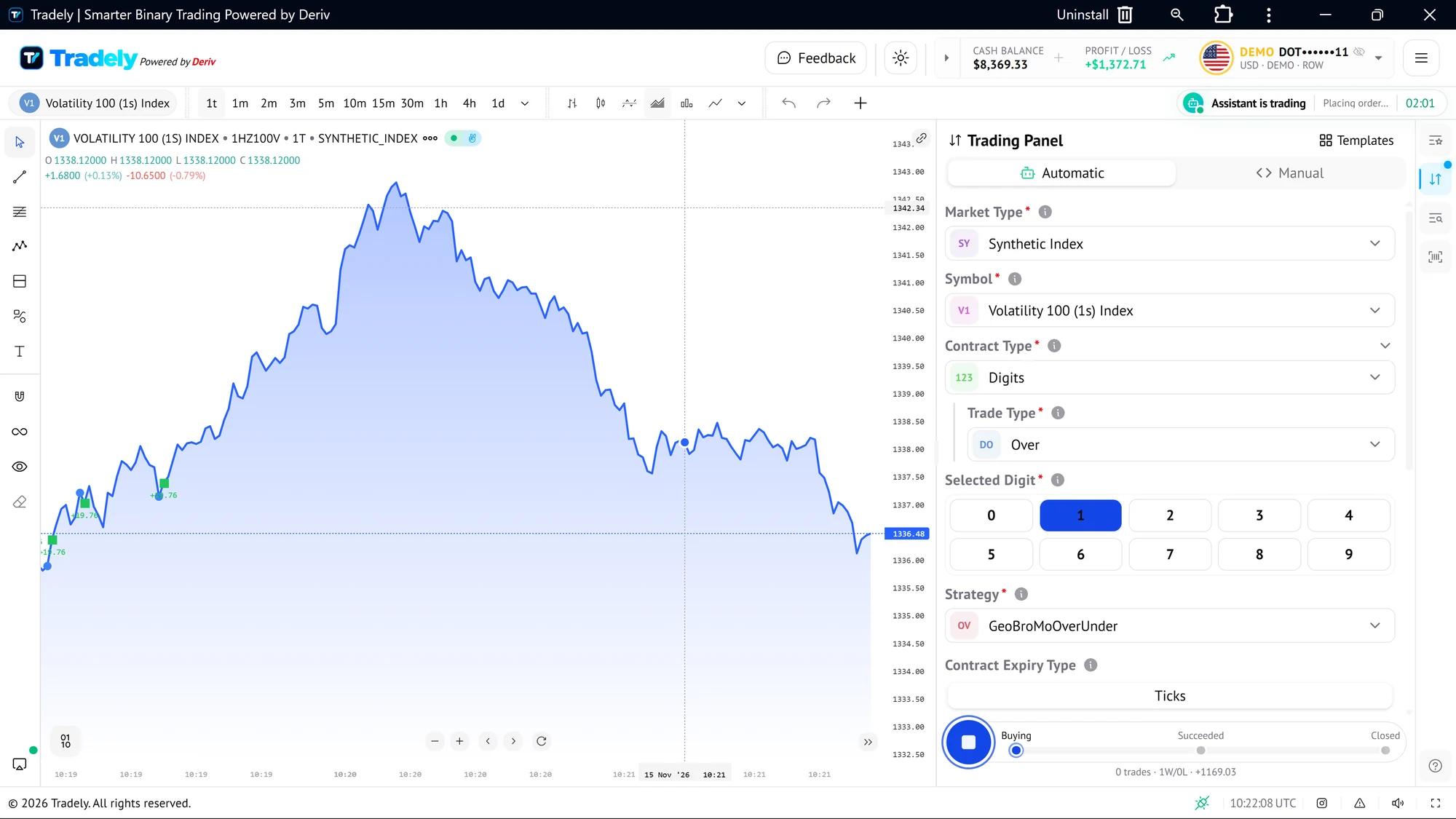
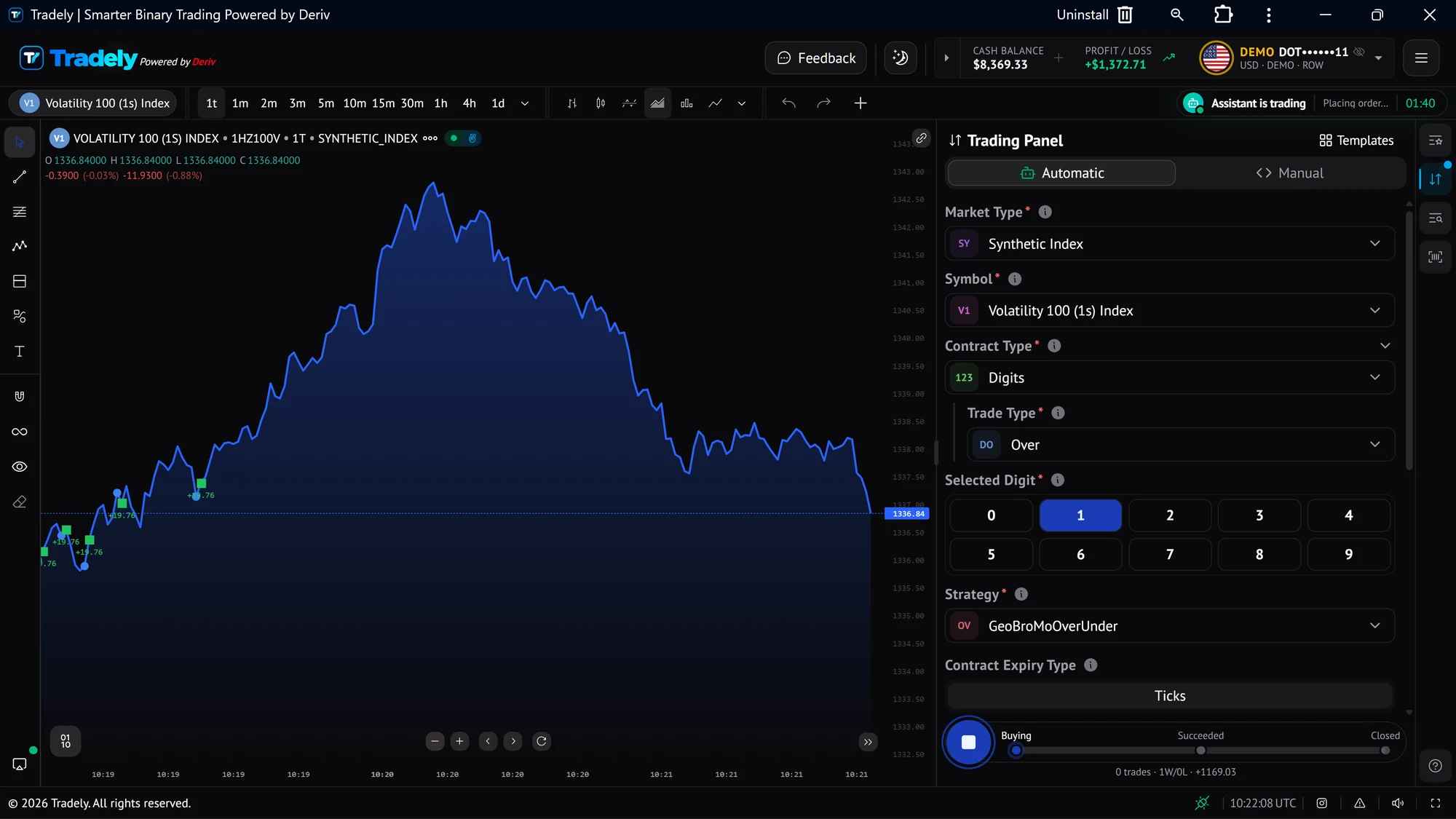
- Pick a market and symbol. The watchlist groups instruments such as Volatility, Volatility (1s) and Boom & Crash.
- Choose the contract type and trade type. Every Deriv contract type is available. See the contract guides.
- Set your expiry in ticks, intraday or daily.
- For Digits contracts, choose a digit from 0 to 9, for example Over with a chosen digit.
- Pick a ready-made strategy, such as GeoBroMo or GeoBroMoOverUnder.
Step 2: Set your stake and limits
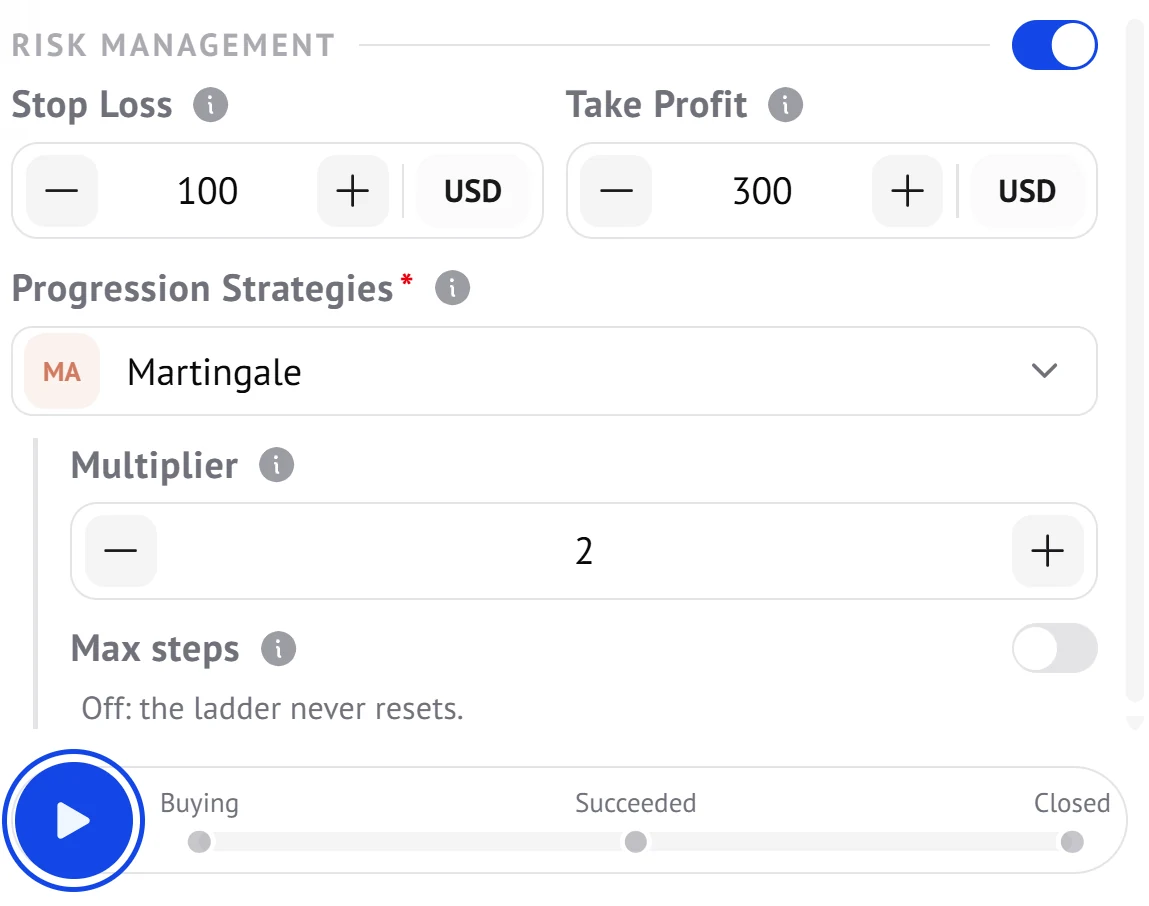
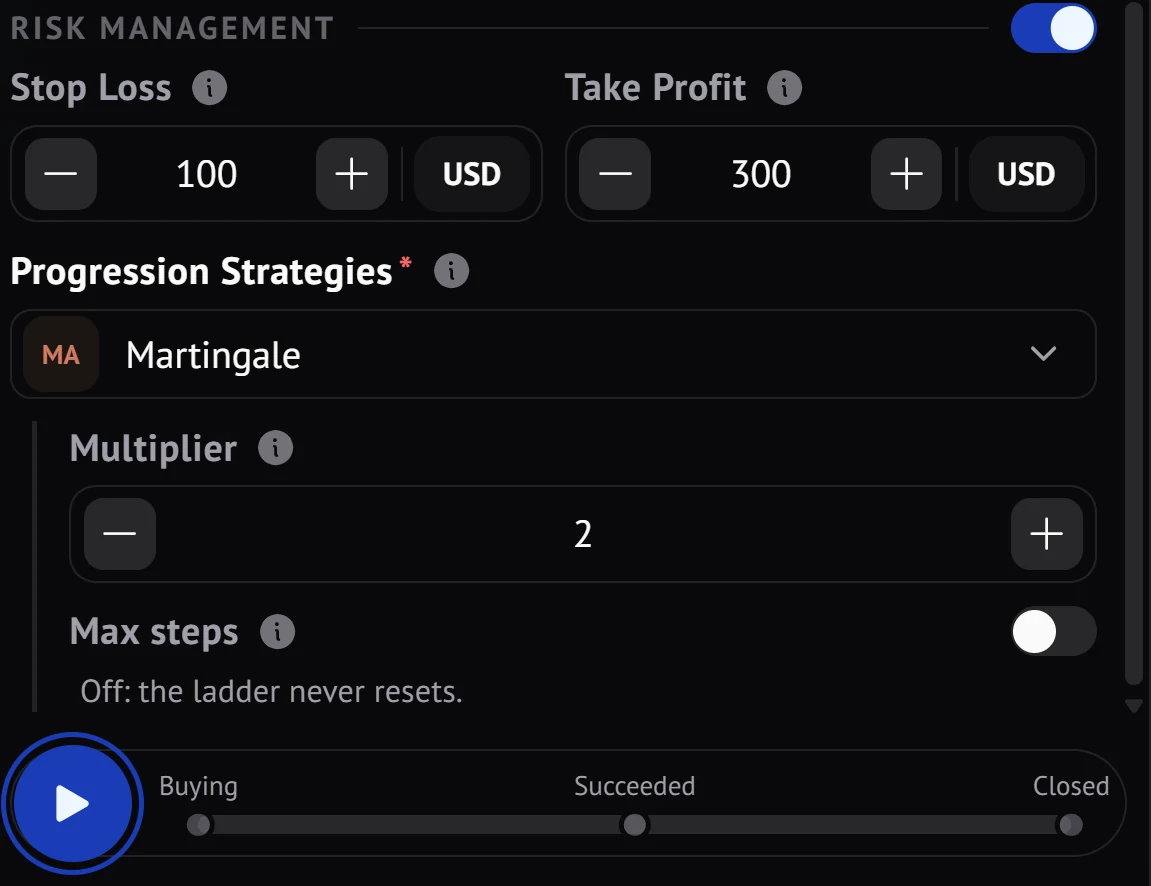
- Under Amount, choose Stake or Payout and enter the value in your account currency.
- Turn on Risk Management and set a Stop Loss and a Take Profit. They apply across the whole session. See stop loss and take profit explained.
- Choose a Progression Strategy if you want your stake to change after each trade. Read how to choose a staking strategy first.
Step 3: Start the assistant and follow it
- Press the play button. The status bar tracks each trade through Buying, Succeeded and Closed.
- Watch trade markers appear on the live chart.
- Check the status bar for whether the assistant is running or stopped and how long the session has lasted.
- Keep the tab open while an assistant is trading. If you close it, the assistant pauses until you return.
Step 4: Review what happened
Open Trade History for each trade and Trade analytics for net profit and loss, win rate and drawdown. Your statement tracks every transaction and your balance.
Practise on a Deriv demo account before you use real money.
Get StartedFrequently asked questions
- How long does it take to start an assistant?
- Choose a market, contract, stake and strategy in the Trading Panel and press play. Practise on a demo account first.
- Where do I see whether my assistant is running?
- The status bar shows whether the assistant is running or stopped, and how long the session lasted.
- Does my assistant keep running if I close the browser?
- Assistants run in your browser session, so keep the tab open. If you close it, the assistant pauses until you return.
Keep reading
- Do I need to code?No. Tradely offers ready-made assistants that you set up with dropdowns and a play button. There is nothing to write or paste.
- Stop loss and take profitA stop loss is the most you are willing to lose in a session. A take profit is the gain you are aiming for. Setting both before you start is one of the simplest ways to keep an assistant inside your plan.
- Which staking strategy should I use?Compare all 15 strategies side by side with links to each guide.
Risk warning: Trading binary options involves a high level of risk and you could lose your entire stake. Only trade with money you can afford to lose. This page is educational and is not financial advice.